Privacy guides
How to verify a file with a SHA-256 checksum
Find an authentic reference, calculate the digest locally, and interpret a match or mismatch before opening the file.
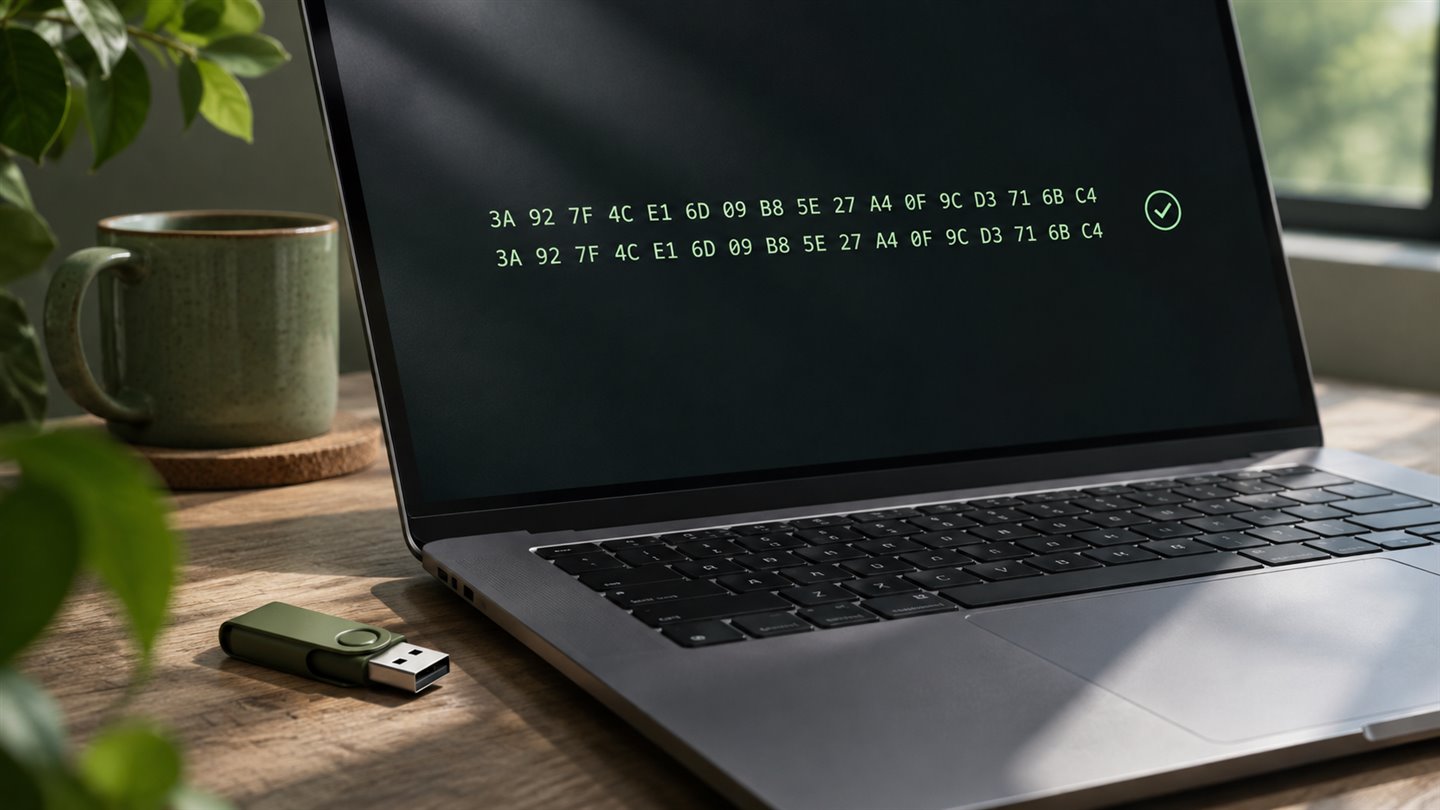
Get the right reference before calculating
A SHA-256 digest describes the bytes of a file. Changing the filename alone leaves the digest unchanged, but a different build, a modified archive, or a truncated download will ordinarily yield a different result.
For an installer or disk image, get the checksum from the publisher’s release page or a checksum manifest whose signature you have verified. Match the filename, version, and platform. If you downloaded from a mirror, obtain the reference from the publisher. Someone who can replace both a file and its published checksum can make the pair match.
Calculate locally in the browser or a terminal
SeraShield’s file fingerprint tool calculates SHA-256 in your browser for files up to 100 MiB. Choose the file exactly as you received it. For an archive, verify the archive before extracting it if that is what the publisher checksummed.
- Choose your file in the fingerprint tool. Copy the expected digest into the comparison field, without the filename, command output labels, or other characters. Uppercase and lowercase hexadecimal letters are equivalent.
- On Windows, open PowerShell in the download folder and run Get-FileHash -LiteralPath './download.zip' -Algorithm SHA256, replacing download.zip with your file. Compare the full value in the Hash column.
- On a system with shasum, such as macOS, run shasum -a 256 './download.zip' in the folder containing the file. Compare the first value, before the filename.
Decide what the result supports
A match against a trustworthy reference gives strong evidence that the bytes agree with what was published. Whether the file is appropriate to run still depends on the publisher and how you obtained it. When a publisher provides a signed release, follow their signature verification instructions as well.
If the values disagree, stop before opening the file. Check that you selected the exact version and that the reference is SHA-256. Download again from the official source and rerun the check. If it still fails, use the publisher’s support or security contact to confirm the expected value.
A few things worth knowing
Can I verify a file if nobody published a checksum?
You can record a digest to compare your own copies later. To check a download against what the publisher intended, you need an authenticated reference or the publisher’s signing instructions.
Can I use a hash to check an image backup?
Yes, when you expect an exact copy. An exported photo can look identical while having different bytes after conversion, resizing, or a change to metadata.