Scenarios
How to keep travel document copies available and private on iPhone
Prepare a small set of travel files, test that they open offline, and keep a second recovery path in case the phone goes missing.
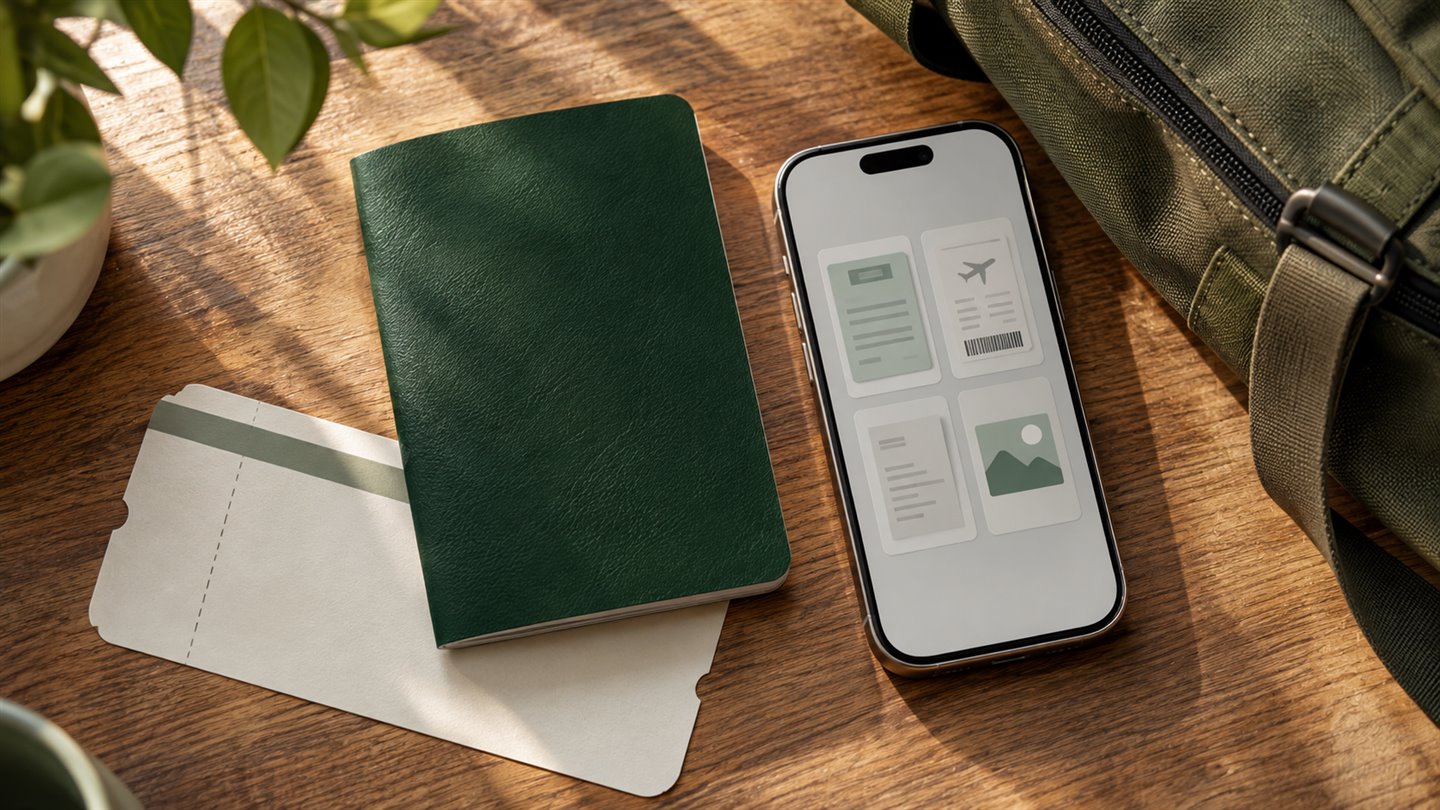
Split the everyday folder from the emergency copies
Imagine arriving at a hotel with no mobile data. Your booking confirmation needs to be easy to find, while a passport scan should not be in the same folder you routinely open in front of strangers. Keep frequently used items such as the accommodation address and itinerary together. Put identity copies in a separate location you can reach when needed.
Make the emergency set small enough to review. A readable identification page and the documents relevant to your trip are more useful than years of old scans in a chat thread. The U.S. Department of State’s checklist for American travellers recommends keeping copies separate from the originals. Follow the advice of your own passport authority and destination for required documents.
Open each document without the network
The Files app distinguishes local storage under On My iPhone from files in iCloud Drive. A name in the list is not proof that the content is available offline. Some cloud items still need to be downloaded, even though their names and previews are visible.
- Open the folder in Files and inspect its location. For iCloud Drive files you need offline, use Keep Downloaded when available, or keep a local copy where appropriate.
- Disconnect from Wi-Fi and mobile data briefly before departure. Open every required PDF or image and check the page count and legibility.
- Verify the file names. A descriptive name such as Hotel confirmation is useful. A full passport number in the filename exposes information even when the document is closed.
- Check that your phone can lock, and decide which copies you still need after the trip.
Make a plan for losing the phone
An offline copy helps when the network fails. A separate copy helps when the device fails. Choose an independent location, such as a protected backup or a copy held by someone you trust, based on who should have access. Confirm that you can retrieve it without a code delivered only to the missing phone.
If someone asks for a scan during the trip, confirm what they need and how they want to receive it. Send the smallest appropriate copy through that channel and check the address. Keep the emergency original separate from any version you modify for sharing.
A few things worth knowing
Can I use an iPhone copy instead of my physical passport?
Check the official document requirements for your route. Keep a digital scan as a recovery aid and carry the required documents in the form the relevant authority accepts.
Does On My iPhone give a file its own password?
It describes where the file is saved. Access still depends on your device and app settings. A local folder does not itself add a separate password.