Scenarios
How to show someone one iPhone photo without letting them swipe
Choose a simple way to show a photo, restrict swipes when handing over your iPhone, and check exactly what you send when someone needs a copy.
Decide whether they need to look or keep a copy
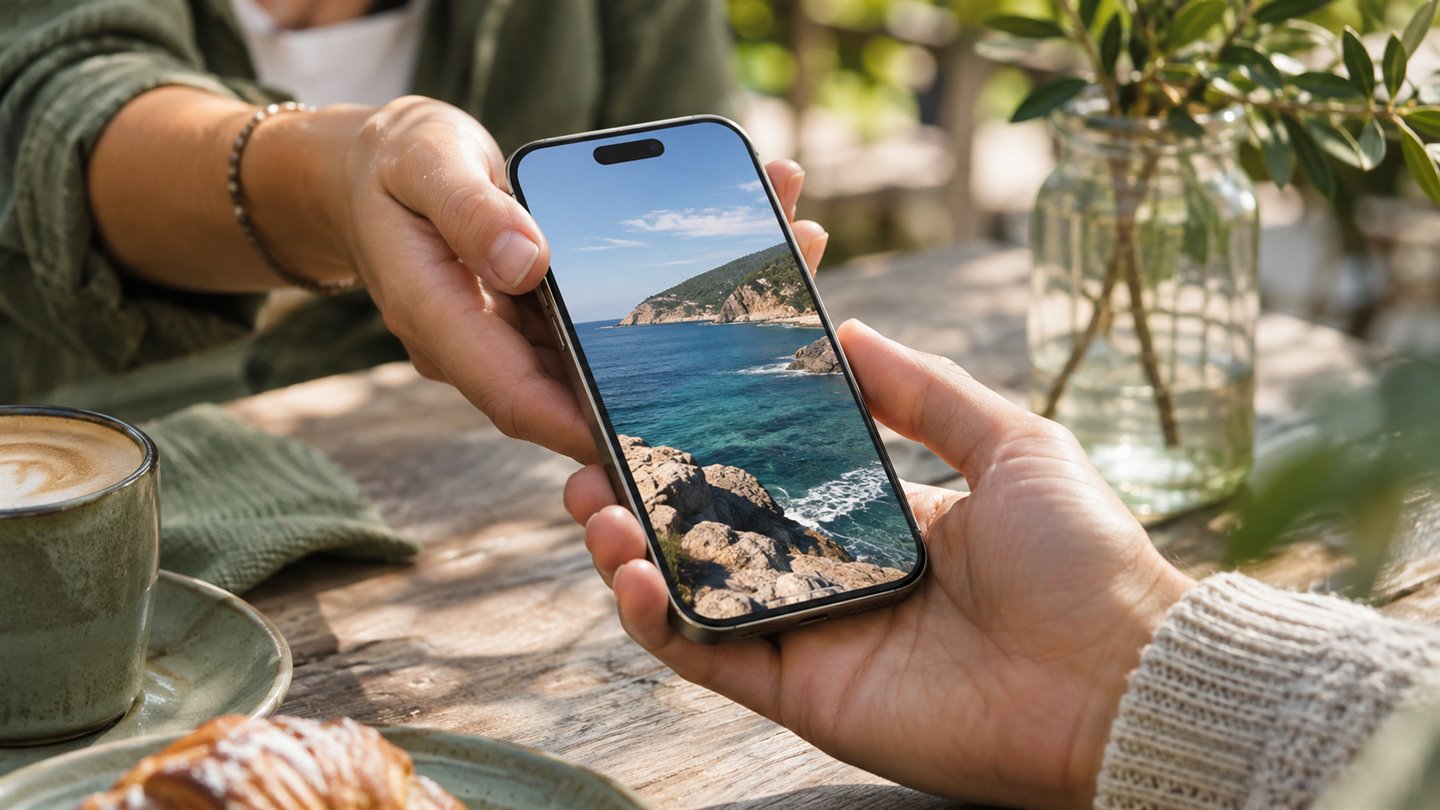
A colleague wants to see a picture of the whiteboard after a meeting. The adjacent image happens to be a receipt with your address. Letting the colleague swipe through Photos gives them access to both. Hold the phone and angle the screen toward them if they only need a glance. If they need to zoom or keep it, send a separate copy instead.
Even one photo can contain more than you meant to show. Check the background, reflections, captions, and visible text before opening the image. For a screenshot, look at the status bar and notification area too.
Disable touch for a brief handoff
Guided Access is an accessibility feature that can keep the iPhone in one app. Confining someone to Photos still allows browsing within Photos if touch stays enabled. For a single still image, disable touch for the whole screen.
- Set up Guided Access in Settings → Accessibility. Choose how you will authenticate to end a session, then practice on a harmless image.
- Open the intended photo. Use the Guided Access shortcut and check the session settings before starting. The exact buttons and labels can vary with the iPhone model and iOS version.
- Turn Touch off, start the session, and try both a tap and a sideways swipe yourself. If either still changes the view, keep the phone in your hands.
- When the phone comes back, end the session yourself and lock the device. Apple notes that emergency services and Crash Detection are unavailable during Guided Access, so end the session promptly.
Share the specific image when a handoff is unnecessary
From Photos, share the selected image and confirm both the recipient and the number of selected items. In the share options, you can turn off Location when applicable. Check whether All Photos Data is enabled when sharing via AirDrop or an iCloud link, since that option can include the original and editing information.
A location setting controls metadata. It cannot remove a readable street sign inside the photo. If the recipient only needs the whiteboard, make a separate crop or cover the private region and reopen the exported file before sending.
A few things worth knowing
Can the other person pinch to zoom if I disable Touch?
No. Zoom to a useful level before starting, or send a reviewed copy if the recipient needs to explore the image.
Does Guided Access protect the photo after the session ends?
It restricts interaction for the session. The photo still lives in your library afterward, subject to your usual device and library settings.